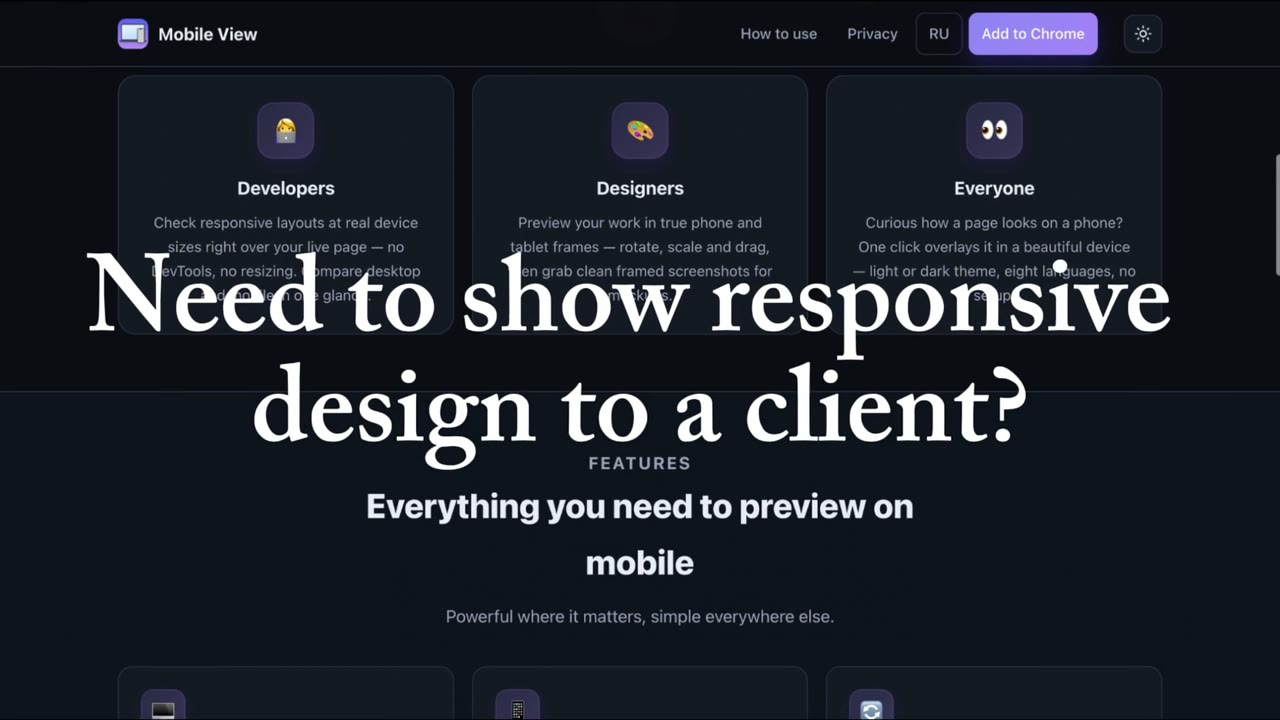
Mobile View drops a real phone or tablet right on top of the page you’re viewing — so you watch the desktop and the mobile‑adaptive layout side by side, in real time. No DevTools, no resizing windows.
Works on any website · Settings saved across tabs · Nothing ever leaves your browser
Made for everyone
Whether you ship code, craft interfaces, or just want to check how a page looks on a phone.
Check responsive layouts at real device sizes right over your live page — no DevTools, no resizing. Compare desktop and mobile in one glance.
Preview your work in true phone and tablet frames — rotate, scale and drag, then grab clean framed screenshots for mockups.
Curious how a page looks on a phone? One click overlays it in a beautiful device — light or dark theme, eight languages, no setup.
Features
Powerful where it matters, simple everywhere else.
The device preview floats over your real desktop page, so you see both adaptive layouts on one screen — live, no split windows.
iPhone, Android (Pixel, Galaxy) and iPad with authentic bezels. Rotate to landscape and scale the preview from 50% to 125%.
Scroll, click and type on either side — the desktop page and the device preview stay in sync. Toggle sync anytime.
Dim the desktop and center the device for a clean, distraction‑free look at the mobile version.
Save a framed PNG (device only or full screen) or record the screen to a .webm video — all locally, with quick Shift+1/2/3 shortcuts.
Device, rotation, position, theme and language are saved and restored across tabs and sessions — in 8 interface languages.
Made for real workflows
Desktop and mobile live on one screen — so a single recording or screen‑share shows how a page looks and behaves on every device. No split screens, no editing.
Record a single .webm walkthrough with desktop and mobile side by side — ready to send, no post‑production.
Show clients exactly how their site behaves on phone and desktop — live on a call or in a shared clip.
Present responsive work like a pro — ideal for freelancers and agencies, with zero setup.
Three steps
Go to the page you want to check and click the Mobile View icon — a real device appears right on top of it.
Pick an iPhone, Android or iPad, rotate, scale and drag it anywhere — or switch to focus mode for a clean look.
See desktop and mobile together, scroll in sync, and save a framed screenshot. Your setup is remembered next time.
Be first to hear about updates, vote on the next features and share your feedback — you help decide what comes next.
Join on TelegramAdd Mobile View to Chrome and preview any page in both views at once.
Add to Chrome — Free